
How to Claim Your Business Listing on ChatGPT
How to claim your business in ChatGPT's Business Hub, what local service owners can do today, and why it does not guarantee more mentions.
 Bret Moleta, Founder, Mindsaw
·
Updated
·
~12 min read
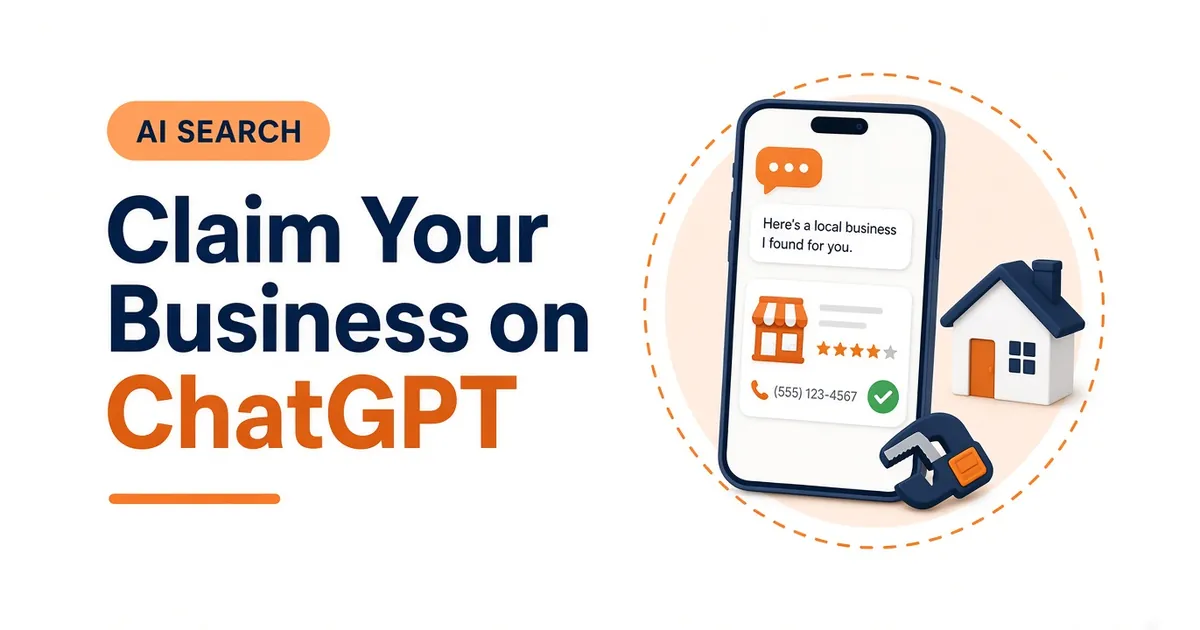 Claim your business listing on ChatGPT
OpenAI opened Businesses in ChatGPT as a beta on November 10, 2026. I wrote this from OpenAI's own help pages and product announcements, not from a screen recording of our account. The screens can still change. If what you see doesn't match a step below, follow the prompts in Business Hub and OpenAI's help article.
What is the ChatGPT Business Hub?
The Business Hub is OpenAI's place for a business owner, or someone authorized to represent the business, to claim a profile in ChatGPT, keep the details current, and see some basic activity numbers.
It is not Google Business Profile. It does not control Google Search or Google Maps. It only covers how your business is managed inside ChatGPT. Customers who look you up in more than one place should still see the same name, category, phone, website, and address, the same way I already tell you to keep those facts identical on your site and your Google profile.
You do not need a ChatGPT Ads account or a ChatGPT Enterprise agreement to claim an eligible business. Advertising, and publishing a Business Agent, are separate optional steps.
Should you claim a listing or create a new one?
Claim the listing if ChatGPT already has one for your business. Create a new one only when it doesn't, and only if Business Hub offers that option.
Do not make a second profile for the same company. OpenAI's policy says not to create a fake or duplicate profile. A second listing splits your details, the same problem you get with duplicate Google Business Profiles.
What you can do today depends on the type of business and whether a listing already exists:
- If your business appears in the search results, select the match and claim it.
- If you can't find it and you run an eligible online business, OpenAI says you may see an option to add it.
- Local stores and restaurants can currently claim only an existing U.S. listing, according to OpenAI's help page.
- OpenAI also says claiming is initially available to eligible businesses with a website, and that eligibility depends on industry, location, and its verification checks.
If you run a service-area business, a plumber, roofer, HVAC company, or cleaner whose customers usually book a visit rather than walk into a store, search for an existing listing first. If ChatGPT asks how customers interact with you, pick the option that is actually true. Do not choose "online store" or "through a website" just to skip a waitlist.
In the first days of the beta, some operators reported that a service-business path was marked coming soon, and that new physical-location listings went to a waitlist. OpenAI has not published a waitlist timeline. If that's what your screen shows, join the waitlist and stop there. You can also ask ChatGPT about your business name and city as a customer would, and see whether a listing already exists to claim.
What should you have ready?
Have these on hand so you don't stall mid-setup:
- A ChatGPT account you will keep using for the business. OpenAI ties management to the account that claims it. The admin can later add teammates or grant an agency access. Use each person's own ChatGPT account. Don't forward a personal claim invitation.
- Your live website on HTTPS, on a domain you control, if you will verify with a DNS record.
- Login access to your domain's DNS, or a way to reach the person who manages it.
- Access to your main business phone and business email, in case those verification options appear.
- A government-issued photo ID, plus your legal business name, registered address, and any registration or tax numbers, for the Persona identity check.
- The same business name, category, phone, website, and address you use on your Google Business Profile and on your site.
How to claim or add your business
- Sign in to ChatGPT and open Business Hub from the sidebar. You can also go to chatgpt.com/business-hub.
- Search for your real business name, the same one you use on Google. Don't add keywords or a city to the name.
- If the right listing appears, select it and confirm the ChatGPT account that will manage it. If OpenAI emailed you a claim invitation, open that personal link and sign in with the address that received it.
- Choose one of the verification methods shown. OpenAI currently lists business phone, business email, website domain, and Shopify.
- If you can't find your business and Business Hub offers a way to add it, follow that path only if it matches how you actually operate.
- If the listing is locked and you see Contact support, use that. Don't invent a second profile.
- Wait for OpenAI to review the claim. It emails you a decision or a request for more information. Review time varies. You can cancel the claim while it's under review.
If you verify with a website domain
OpenAI asks you to add a DNS TXT record. Copy the type, name or host, and value exactly as shown, then add it at your DNS provider. If someone else manages the domain, send them those three fields and wait until the record is live before you click Verify domain. OpenAI notes that DNS changes can take time to appear.
A practical note from operators who did this in the first days of the beta: many DNS panels already append your domain to the host field. If ChatGPT shows a host like `openai-business-profile.yourdomain.com`, pasting the whole thing can turn it into a doubled name that never verifies. Use only the host ChatGPT shows for the Name field if your provider adds the domain on its own. Some operators also reported that the record expired quickly, sometimes in about half an hour. OpenAI's help page does not publish an expiry time. If the screen shows a deadline, add the record and verify in the same sitting. If it expires, go back and generate a new one.
If you verify with a phone or email
OpenAI sends a code. For the phone, you can choose a text message or an automated call. Enter the code, then finish any remaining prompts.
If you use Shopify
You can connect the Shopify store for the business you're claiming and follow the prompts. You do not need Shopify to claim a business.
How the Persona identity check works
Claiming the listing and finishing identity verification are two different steps.
OpenAI says you need to complete identity verification with Persona before you can publish changes to your business information, view insights, connect a product feed, or create an eligible Business Agent. Claiming alone does not add the verified badge. The blue check appears after Persona verification is approved.
You may need a government-issued ID, business registration information, and proof that you're authorized to represent the business. Copy those details from your official records so the name, address, and any registration or tax number match.
OpenAI reviews the submission and emails you its decision or a request for more information. Submitting information to Persona is not the same as approval. Features that need Persona stay locked until OpenAI approves it. If a check fails or expires, follow the email. If Try again is available, submit corrected information. Review time varies. Don't retry while a review is still open.
If you verified the claim another way first, you can finish Persona later from your business overview in Business Hub.
One official warning is easy to miss: if you use Persona to create a new profile, OpenAI's approval automatically publishes it. There's no separate publishing step, so continue only when you're ready.
What if someone else already claimed your business?
OpenAI lets you dispute ownership. Open the profile, use the more-options menu, and choose Dispute ownership. You'll verify with Persona that you're authorized to represent the business.
OpenAI also says claiming a profile or disputing ownership does not change its visibility in ChatGPT. Still, if the listing is yours, don't leave it in someone else's account.
What can you manage after you're verified?
After the claim and Persona verification are approved, you can update details such as your website, business description, product or service category, logo, delivery policy, and return policy. You can also add a cover photo and other optional details. Everything you submit has to follow the Businesses in ChatGPT policy: accurate, current, and not misleading.
OpenAI reviews and publishes changes. Updates can take time to appear in a listing or in a ChatGPT answer. A saved change does not mean every answer will reflect it right away. ChatGPT may also use other sources when it answers questions about your business.
If you sell products, you can connect a product feed, including a Shopify feed or a CSV that follows OpenAI's specification. Connecting a feed does not publish an agent, and it does not guarantee that ChatGPT will recommend your products.
Insights, when they have enough activity to report, cover about the past 28 days:
- Mentions. For an online business, OpenAI counts a mention when ChatGPT references the business's website. The brand name alone doesn't count. For a local business, a mention counts when ChatGPT shows a result for that location, even if the customer doesn't open the listing or visit the website.
- Website clicks. How often people click through to your website. Compare that number with ChatGPT referrals in your own analytics. They may not match perfectly.
- Discovery topics. Common themes in answers that mentioned or cited your business. These are grouped themes, not individual customer prompts.
A blank metric does not necessarily mean zero activity. It can mean the reporting threshold hasn't been reached, data is still being collected, or reporting is unavailable.
OpenAI does not share individual conversations, or chats with a Business Agent, with the business.
Does claiming your listing make ChatGPT recommend you more?
No. OpenAI is direct about this. Claiming lets you manage the information you provide. It does not guarantee increased visibility, higher placement, or more sales. ChatGPT still makes its own recommendations and comparisons. Advertising does not influence ChatGPT's independent answers.
Treat the listing the way you should treat any other profile you control. Claim it early, keep the facts straight, and don't expect it to replace the work that already gets you calls from Google Maps: the right category, a website that matches the profile, consistent name, address and phone, real photos, and reviews from every job. The same foundation still matters when people ask Google's AI Mode for a local pro.
Keep the same facts everywhere
ChatGPT answers can draw on more than your Business Hub profile. OpenAI says profiles may include information from other sources, and that ChatGPT may use other sources when it answers questions about you.
OpenAI does not publish a full list of those sources. I won't invent one. What is documented is narrower than the rumors:
- ChatGPT can search the web, and OpenAI lists Microsoft as a search partner for that web search. That is not the same as saying Bing Places controls your ChatGPT listing.
- For restaurant reservations, OpenAI's help page names OpenTable, Resy, and Yelp. Yelp has also said it licenses reviews, ratings, photos, and business details to ChatGPT. Keep your Yelp page accurate if you have one. That still isn't the same thing as your Business Hub profile.
- To have your own website eligible for ChatGPT search results, allow OAI-SearchBot to crawl the site.
I have not seen OpenAI confirm that Apple Business Connect, Bing Places, or Foursquare feed the ChatGPT business listing itself. Claim and clean those profiles anyway, because customers and other systems still use them, and because mixed name, address, or phone details cause problems everywhere. Just don't do that work under the belief that it automatically controls ChatGPT.
Use the same primary category idea you use on Google. If you're a plumber, the category should say plumber, not a generic contractor label that hides the work you want calls for. Write the description in plain language: what you do, who you do it for, and where. Skip the keyword stuffing.
What about Business Agents and ads?
Eligible ecommerce and online service businesses in the U.S. can build a Business Agent after the claim and Persona verification are approved. The agent is a separate, clearly labeled chat that answers from information you provide. It cannot currently complete purchases, take bookings, or look up a customer's order. It can explain products and policies and link to your website.
You do not need to publish an agent, or run ads, to claim your business and manage its information. Some businesses can manage a profile without being eligible for an agent. If the option isn't there, check OpenAI's Business Agents policy rather than assuming the setup failed.
If ChatGPT offers advertising or credit next to the listing, read the terms before you count on it. Ads are separate from independent answers.
What to do this week
- Search your business name in Business Hub and claim the listing if it's there.
- If you can't claim it yet, join the waitlist when that's the option you're given, and don't create a duplicate.
- Make sure your Google Business Profile, your website, and your other public listings already agree on the facts. That's still the work that gets you found, including in AI search.
If you want a second set of eyes on the Google side of this, start with a free Google Maps audit or text (718) 227-2300.
Keep reading
More from the Mindsaw blog on Google Maps and local search.

Questions we get
Is it free to claim your business on ChatGPT?
OpenAI says you don't need an Ads account or a ChatGPT Enterprise agreement to claim an eligible business. Claiming, managing the profile, and publishing an eligible agent are treated as separate from advertising. OpenAI has not published a promise that every feature will stay no-cost later.
Can a local storefront or service business get listed?
A storefront business in the U.S. can get listed right now if a listing already exists and you can claim it. OpenAI says local stores and restaurants can currently claim only an existing U.S. listing. Eligible online businesses may see an option to add a new listing. If you run a service-area company and you hit a waitlist or a coming soon message, join the waitlist if it's offered, and keep your Google profile, website, and other listings accurate in the meantime.
How long does verification take?
OpenAI says review time varies. It emails you a decision or a request for more information. Wait for that review to finish before you try again.
Why does ChatGPT ask for a government ID?
OpenAI uses Persona to confirm that a real person authorized to represent the business is managing the profile. That check is required before you can publish changes, view insights, or create an eligible agent. The blue check appears after approval, not after the initial claim.
Can you manage more than one business?
Each distinct brand is managed separately. OpenAI says central management across a parent company's brands and locations isn't currently available, and claiming the main brand doesn't claim its locations. The admin who claimed a business can add teammates in Business Hub.
Is the ChatGPT Business Hub the same as Google Business Profile?
No. Business Hub only covers ChatGPT. Google Business Profile covers Google Search and Maps. Keep the name, category, phone, website, and address the same in both, and on your site. For the Google side, start with the local SEO checklist.
Want to talk about your map pack?
Start with a free Google Maps audit, or call Mindsaw. We’ll look at your profile, your service pages, and whether AI tools can read what you do and where.
221 Main St N, Suite 708
St. Petersburg, FL 33716
Bret Moleta, Founder, Mindsaw
Bret Moleta founded Mindsaw in 2000. He works on Google Business Profiles, Google Maps rankings and websites for local businesses, and shares what he learns on YouTube. More about Bret.