

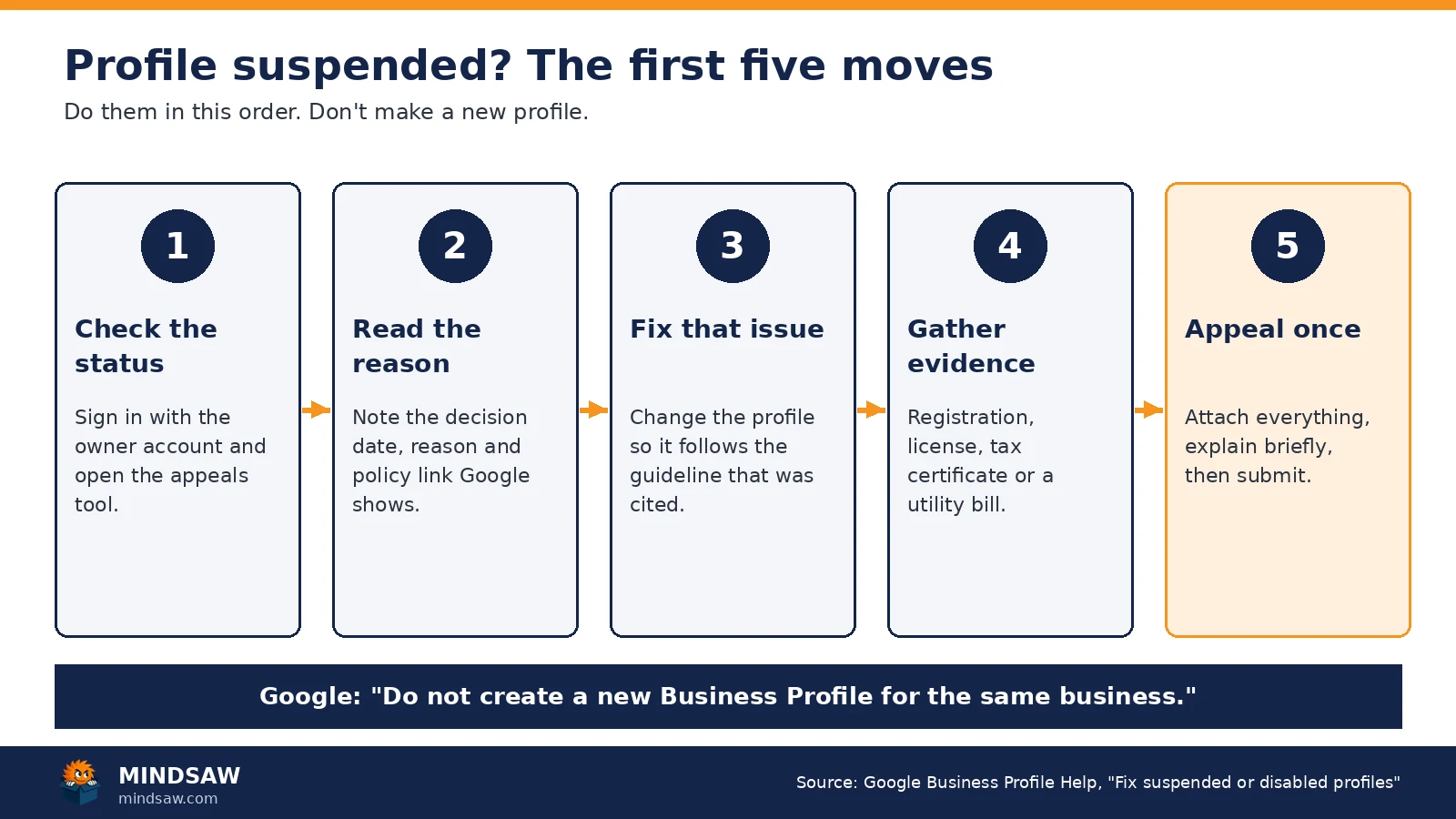
Short answer: don’t make a new profile, and don’t start changing things at random. Open Google’s appeals tool, read the reason it gives, fix that issue on your current profile, gather documents that show your business name and address, and submit one appeal. Google says appeal reviews “can take up to 5 business days.” Nobody, including us, can promise you’ll get it back.
First, check what actually happened
A profile that “disappeared” isn’t always suspended. Before you panic, sign in to the Google account that owns the profile and look at its status. Then open the Google Business Profile appeals tool. Google says the tool shows “The date of the initial decision,” “The reason for the decision,” “A link to the violated policy” and “Whether the decision can be appealed.”
If the tool shows no decision, the problem may be something else, like a pending edit or a verification issue. Google’s appeals page says that if you see no moderated content to appeal but think something is restricted, you should contact them.
Write down what the tool shows before you touch anything. The date, the reason and the policy link are the three things you’ll build the whole appeal around. Click the policy link and read the whole page. If you skip it and guess, you can end up fixing the wrong thing and using up your one appeal.
Also check verification. Google’s appeals page says, “If you haven’t verified your Business Profile, content associated with your Business Profile might not appear across Google.” An unverified profile can look like a missing one, and the fix is different.
Suspended vs. disabled: what Google calls it
Google’s help page is titled “Fix suspended or disabled profiles” and opens with: “We may suspend or disable Business Profiles that don’t follow our guidelines.” Both go through the same appeals tool.
You’ll also hear people in local SEO talk about “soft” and “hard” suspensions. Those are industry nicknames, not Google terms. Usually “soft” means the listing is still public but you can’t manage it, and “hard” means it’s gone from Search and Maps. They describe what you see. Build your appeal around the reason Google shows you.
There’s one more case that matters. Google says your account can be restricted, and then “the Business Profiles you manage are suspended and you won’t be able to create or claim other profiles.” In that case you appeal the account first on your My accounts page, then the profile. Google says that once the account restriction is lifted, you can appeal the Business Profile suspension.
Rejected edits are a different problem
Sometimes the profile is fine and only a change got turned down. You tried to update the name, the category, the address, the phone or the website, and Google rejected it. That isn’t a suspension, and it doesn’t go through the same door.
Google’s appeals page splits it by location. Google says that if your business operates outside the UK and EEA, “you must contact us to appeal” a rejected business information edit, which covers the name, category, address, phone and website. The same goes for restricted media and other content restrictions. Businesses in the UK or EEA can use the appeals tool for those. A suspended or disabled profile goes through the appeals tool either way.
One more rule from that page: “If your Business Profile is suspended or disabled, it must be reinstated before you can appeal any content decisions.” So if both things happened, get the profile back first. Then deal with the rejected edit.
Profile, owner or manager: find out who got hit
Google treats three situations differently, and the fix depends on which one you’re in. This is straight from Google’s “What happens when a profile is removed?” section.
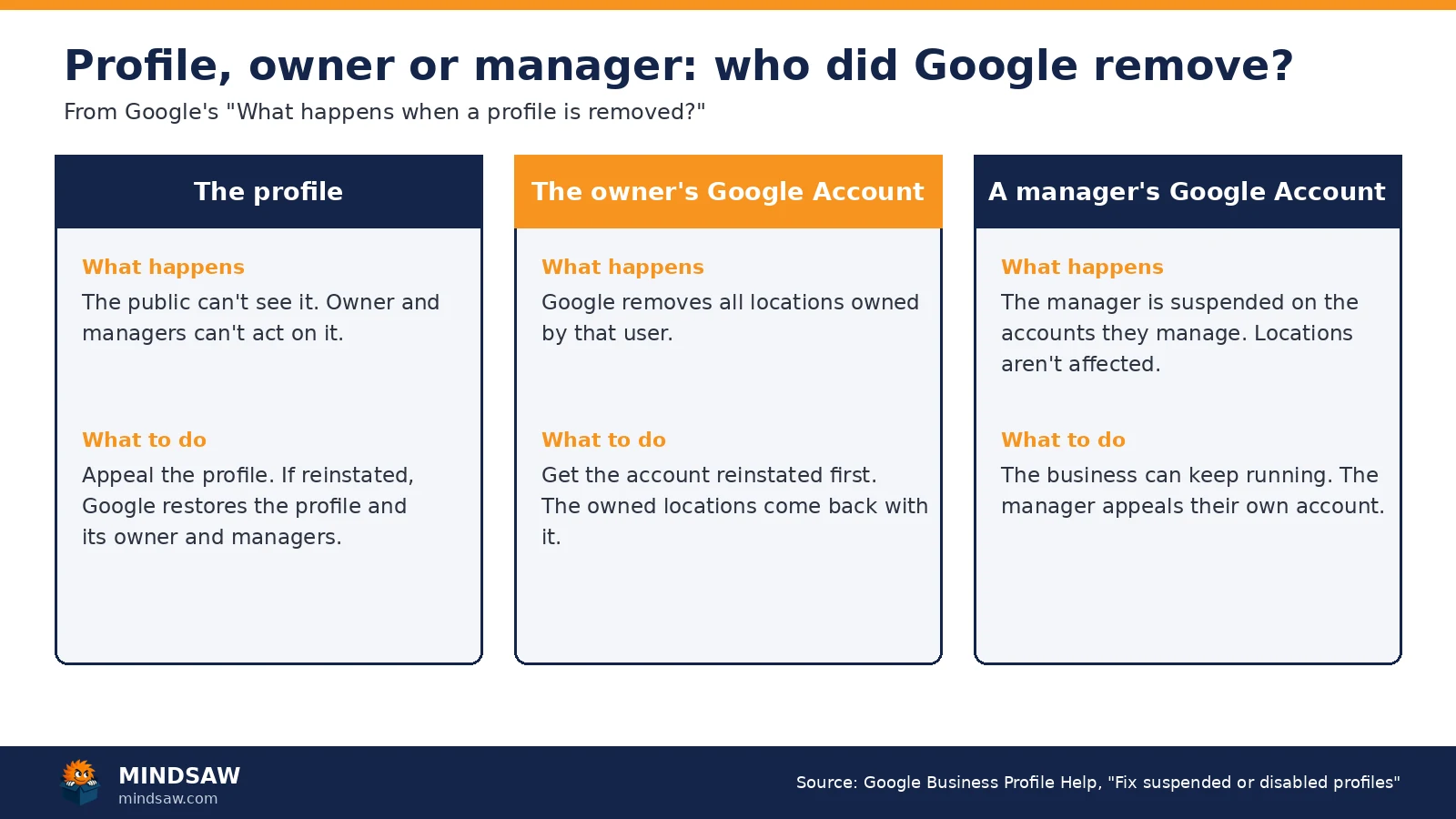
- The profile was removed. Google says “The public can’t go to the profile” and “The owner and managers can’t act on the profile.” If Google reinstates it, “We reinstate both the profile and its owner and managers.”
- The owner’s Google Account was removed. Google says “We remove all the locations owned by that user.” If the owner’s account is reinstated, “we also reinstate the owned locations.”
- A manager’s Google Account was removed. Google says “We suspend the manager on the accounts that they manage. It doesn’t affect the locations.”
This is why I always ask who owns the profile before anything else. If a past web person or an old employee is the owner and their Google account got flagged, your profile went down with it, and you were never told. Get the owner sorted out first.
Why profiles get suspended
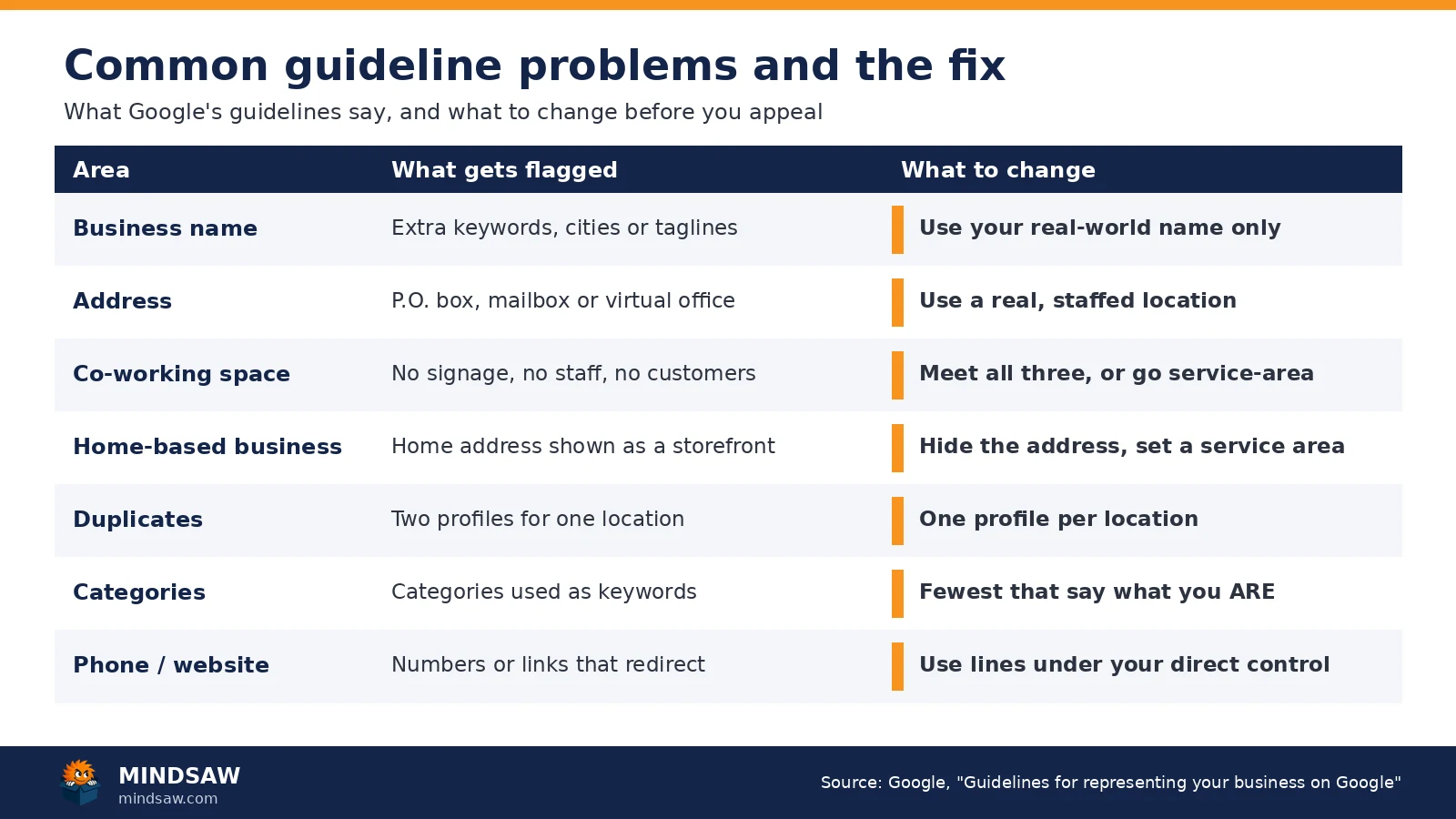
Google’s guidelines for representing your business list what it expects. Google says that “To make sure your Business Profile won’t be suspended” you need to “Avoid prohibited content and behavior,” “Reflect your business accurately,” and follow the product guidelines. The issues we see most often line up with these rules:
Extra words in the business name
Google says your name “should reflect your business’s real-world name, as used consistently on your storefront, website, stationery, and as known to customers,” and that “Including unnecessary information in your business name isn’t permitted, and could result in the suspension of your Business Profile.” Service or city keywords added to the name are the classic example. Google wants the address, service area, hours and category in their own fields, not in the name.
Legal terms and symbols have their own rule. Google says that to include special characters or legal terms in the name, “you must provide real-world proof (e.g. signage, business cards, invoices) that consistently displays those elements as part of your business name.”
An address that doesn’t qualify
Google says “P.O. boxes or mailboxes located at remote locations aren’t acceptable,” and that if your business “rents a physical mailing address but doesn’t operate out of that location, also known as a virtual office, that location isn’t eligible for a Business Profile.”
Co-working spaces are a common trap. Google says businesses can’t list an office there “unless that office maintains clear signage, receives customers at the location during business hours, and is staffed during business hours by your business staff.” A desk you rent by the month with no sign on the door doesn’t pass. Google also says businesses showing their address “should maintain permanent fixed signage of their business name at the address.”
Duplicate profiles
Google says “There should only be one profile per business” and “Do not create more than one page for each location of your business, either in a single account or multiple accounts.” Duplicates often come from an old profile someone made years ago and forgot. Search Google Maps for your business name and phone number and see what comes up.
A home address showing as a storefront
For service-area businesses, Google says “you should hide your business address from customers,” and uses the example of a plumber who runs the business from a residential address. Google also says the overall service area “shouldn’t extend farther than about 2 hours of driving time from where your business is based,” though “For some businesses, larger service areas may be appropriate.”
Categories used as keywords
Google says “Do not use categories solely as keywords or to describe attributes of your business,” and to “Choose the fewest number of categories it takes to describe your overall core business.” Google’s test is to pick categories that complete the statement “This business IS a” rather than “this business HAS a.”
Phone numbers and links that redirect
Google says “Do not provide phone numbers or URLs that redirect or ‘refer’ users to landing pages or phone numbers other than those of the actual business,” and “The phone number must be under the direct control of the business.” If a lead company or an old agency owns the number on your profile, that’s a problem.
The business description
Google says the description must not “Focus on special promotions, prices, and offer sales,” and “No links of any type are allowed.” Keep it to what you do, who you serve and your history.
Reviews you asked for the wrong way
Review problems can put a profile at risk too. Google’s Maps content policy says merchants may not “Discourage or prohibit negative reviews, or selectively solicit positive reviews from customers,” and may not “Offer incentives – such as payment, discounts, free goods and/or services – in exchange for posting any review.” Ask every customer the same way, and let them pick the stars.
Big edits can trigger a review
Sometimes the suspension shows up right after you changed something. In one of my videos I put it this way:
“Be careful making too many changes because they have been suspending GMBs.”
Bret Moleta, 3 Simple Google Business Profile Tweaks That Get You More Calls, at 5:11
That was April 2025, and my advice then still holds: if you just made a change, leave the profile alone for a bit. Make one significant change, wait, and see what happens before you make the next one. If you move, rebrand and change your categories in the same week, and the profile goes down, you won’t know which change caused it.
What to do first
- Don’t create a new profile. Google puts it plainly: “Do not create a new Business Profile for the same business.”
- Check who owns it and who manages it. Sign in with the account that owns the profile. If an agency, a former employee or a freelancer set it up, find out whose Google account is the owner and who has manager access. Knowing which account is involved tells you where to appeal.
- Fix the guideline issue. Google’s first instruction is: “Make sure your profile follows all the guidelines.” Change the name back to your real-world name, remove a virtual or mailbox address, hide a home address if you’re a service-area business, and clean up categories.
- Gather your evidence. See the next section.
- Submit one appeal. Attach everything before you click submit.
Here’s what I’d say to anyone who has never had a problem yet. Make contact with Google before you need it. I said this years ago:
“there’s going to be a time where you put in for your Google business profile and it gets automatically rejected or you have your Google business profile and it gets suspended for no reason”
Bret Moleta, Rank in Google Maps Fast, Rank in Google Maps Explained (2023), at 5:56
When that happens, it helps to already have the paperwork in a folder and to know exactly which Google account owns what.
How the reinstatement appeal works
Google lists evidence that “can help strengthen your appeal”:
- Official business registration
- A business license
- Tax certificates
- Utility bills for the business, such as electricity, phone, water or internet (Google’s other appeals page lists cable too)
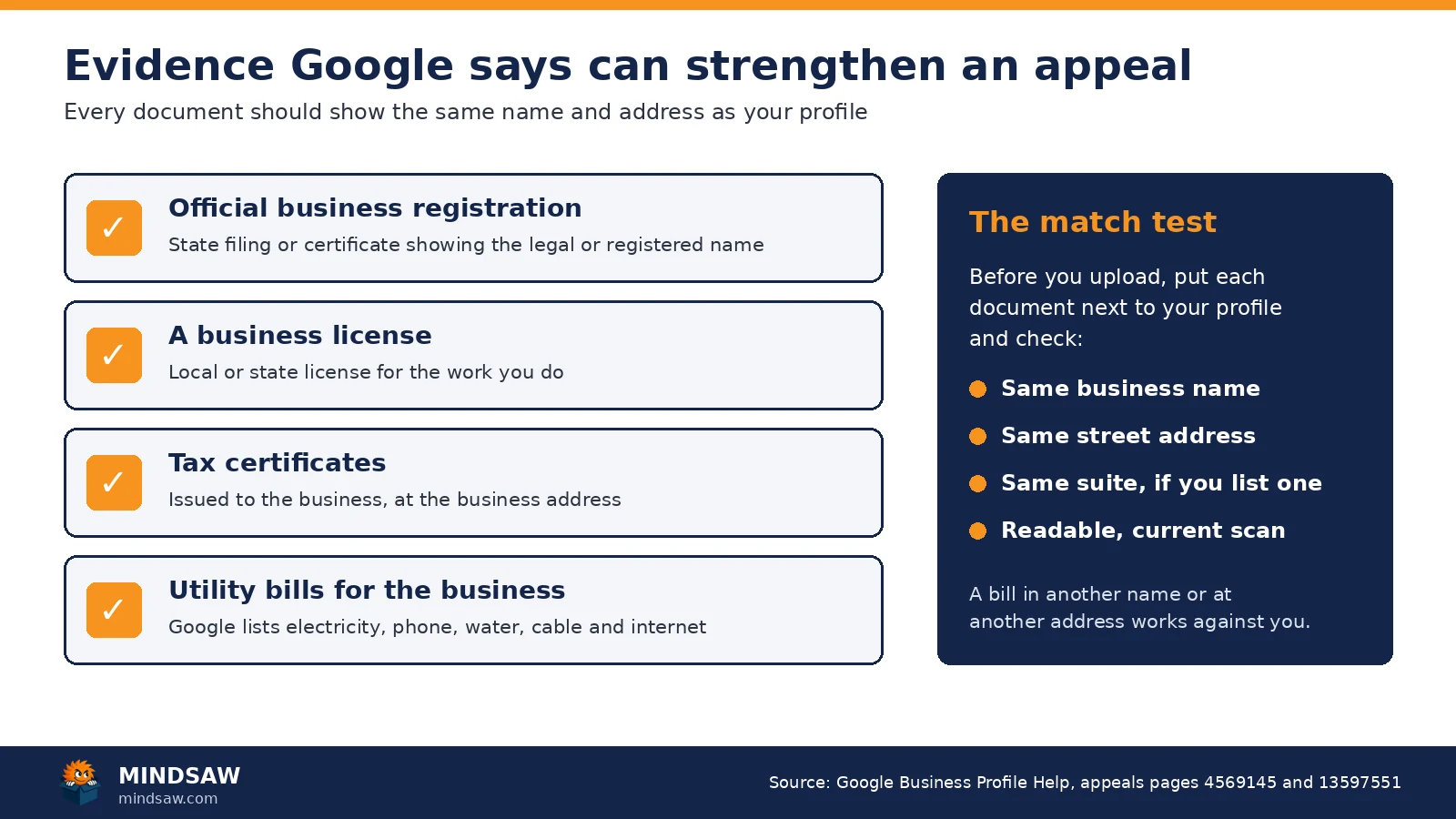
Google adds this tip: “check that the business name and address match the profile you want to make an appeal for.” A utility bill in a different name, or at a different address, works against you. Google also says, “we recommend that you prepare the documents before submitting an appeal.”
In the appeals tool you select the profile, select the decision, attach files, and use the text box to explain why your profile should be reinstated. Then you check the box that says “I’m ready to submit this appeal and confirm that all optional supporting evidence is attached” and select Submit appeal.
What to write in the text box
Keep it short and factual. Google isn’t grading your writing. It wants to see that you understood the problem, fixed it, and can prove the business is real at that address. I’d cover four things:
- The business’s real-world name and address, exactly as they appear on your documents.
- The reason the appeals tool gave, in a sentence.
- What you changed on the profile to fix it, and the date.
- What each attached document proves.
Here’s a plain example you can adapt. Fill in your own details:
“Our business is [real business name] at [address]. The appeals tool listed [reason]. On [date] we changed [what you changed] so the profile matches our real-world name and location. Attached are our [document type] and [document type], both showing the same name and address as the profile.”
Don’t argue, don’t blame a competitor, and don’t paste in your whole history. Read it once out loud before you submit. If something in it isn’t true or can’t be proven by a document, take it out.
If you manage more than 10 profiles
Agencies and multi-location owners get a different path. Google says that if you manage more than 10 Business Profiles, the tool asks, “Are you requesting bulk reinstatement for 10 or more suspended locations?” You then attach “a spreadsheet that contains the Business Profile ID for each suspended location” plus supporting documents. Google says to “Make sure that the business name and address on each document exactly match your registration.” Google also notes that the status in the tool only changes for the profile you selected, and you get one email for that profile.
Mistakes that sink an appeal
Most of these come straight from Google’s own rules, so they’re easy to avoid once you know them:
- Submitting before the fix. Google’s first step is “Make sure your profile follows all the guidelines.” If the name still has keywords in it when Google looks, you’ve asked them to approve the same problem.
- Submitting before the evidence is attached. “Appeals can only be submitted once,” so a missing document stays missing until a denial.
- Documents that don’t match. A license at your old address or a bill in your personal name doesn’t prove the business on the profile.
- Making a new profile while you wait. Google says not to, and it gives you a duplicate to clean up later.
- Appealing from the wrong account. Google asks you to sign in to the Google account related to the profile. If the owner is someone else, sort that out first.
How long Google says it takes
Google’s appeals page says: “Appeal reviews and decisions can take up to 5 business days. Do not submit multiple appeals for the same issue before receiving a decision.” Google sends the decision by email. In the appeals tool the status shows as Submitted, Approved, Not Approved, Can’t be appealed, or Eligible for appeal.
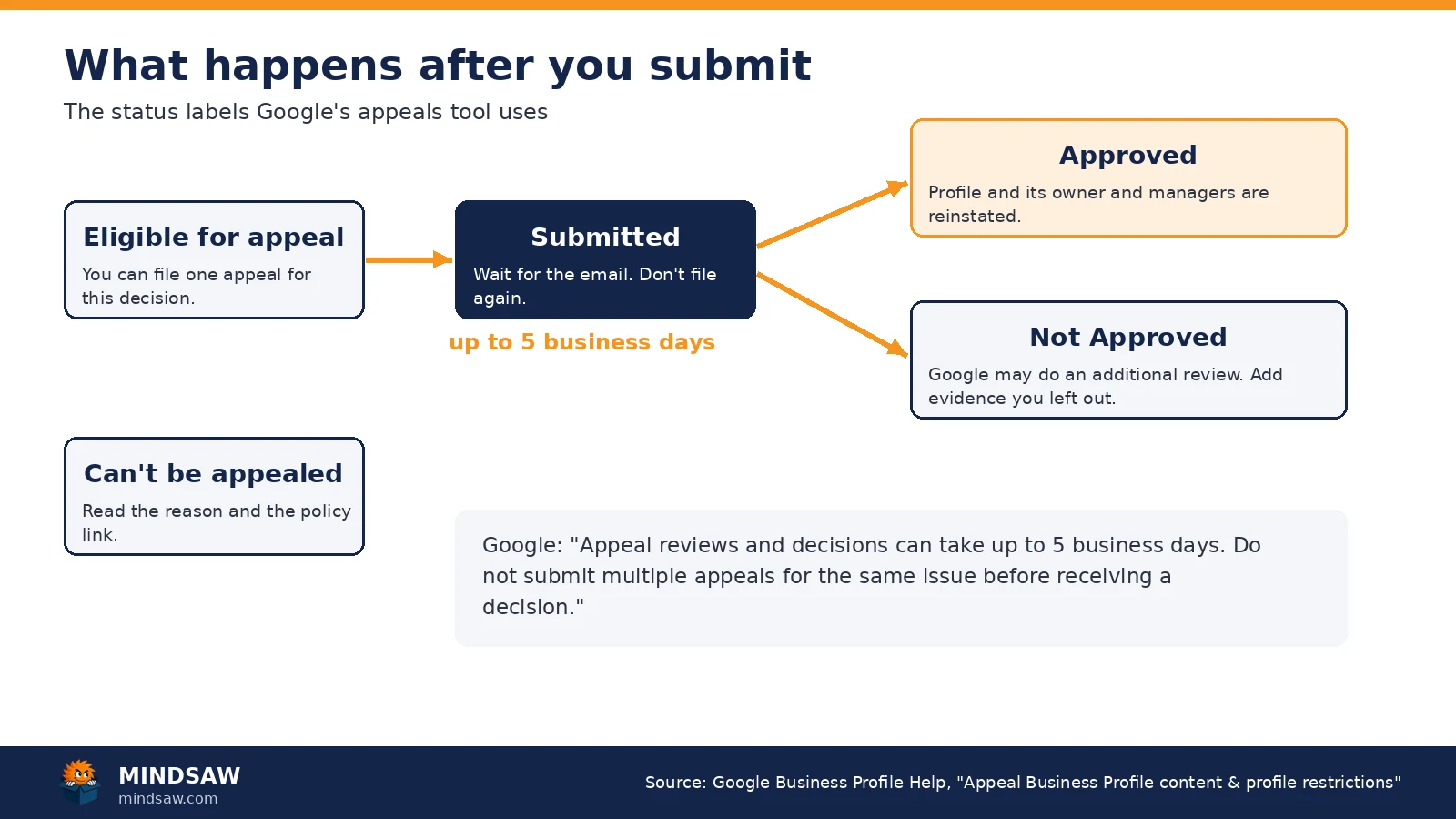
While you wait, leave the profile alone. Don’t keep editing it, and don’t send a second appeal because the first one feels slow. Watch the email inbox for the Google account you used, and check the status in the tool.
If it’s denied, Google says it “may be able to do an additional review,” and you can add “additional evidence that wasn’t added with your original appeal.” Use that chance to add whatever was missing the first time. Go back to the reason Google gave, and ask yourself honestly whether the profile really follows that guideline now. If it does, find a stronger document. If it doesn’t, fix that first.
If Google approves it and something still looks wrong on the reinstated profile, Google says to contact Google Business Profile Help.
How to keep it from happening again
- Use the name on your signs, invoices and website, and nothing else.
- Keep one profile per real location.
- Service-area businesses should hide a home address and set a real service area.
- If you use a co-working space, make sure it has your sign, your staff and customers during business hours, or don’t list it.
- Pick the fewest categories that describe your core business.
- Keep the phone number and website under your control, with no redirects to someone else’s page.
- Ask every customer for a review the same way. No gating, no rewards.
- Make one significant change at a time, and keep paperwork that matches your profile on file before you need it.
- Know exactly who owns and manages your profile, and remove access for people who no longer work with you.
I’d go through this list once a quarter. It takes a few minutes.
Frequently asked questions
Should I create a new Business Profile if mine was suspended?
No. Google’s help page says: “Do not create a new Business Profile for the same business.” Fix the problem on the profile you have and appeal it.
How long does a Google Business Profile appeal take?
Google’s appeals help page says: “Appeal reviews and decisions can take up to 5 business days.” Google sends the decision by email, and you can check the status in the appeals tool.
What is the difference between suspended and disabled?
Google uses both words on one help page, “Fix suspended or disabled profiles,” and sends both to the same appeals tool. Read the reason the appeals tool gives you. That matters more than the label.
Can I appeal more than once?
Google says “Appeals can only be submitted once” and asks you not to file multiple appeals for the same issue before you get a decision. If the appeal is denied, Google says it may do an additional review, and you can add evidence you didn’t include the first time.
What documents does Google accept as evidence?
Google lists official business registration, a business license, tax certificates, and utility bills for the business, such as electricity, phone, water, cable or internet. The business name and address on each document should match your profile.
Can I use a co-working space as my business address?
Only if it meets all three of Google’s conditions: the office “maintains clear signage, receives customers at the location during business hours, and is staffed during business hours by your business staff.” If it doesn’t, list as a service-area business and hide the address.
My name or category edit was rejected. Is that a suspension?
No. A rejected edit is a separate decision. Google says businesses outside the UK and EEA must use the contact us form to appeal a rejected business information edit, while a suspended or disabled profile goes through the appeals tool.
Can Mindsaw guarantee my profile gets reinstated?
No. Only Google decides. We can help you find the likely cause, fix it, and put together a clean appeal with the right evidence.
Want a second set of eyes?
If your profile is suspended and you’re not sure why, we can look at it with you, find the likely guideline issue, and help you put together your appeal and evidence. Google makes the decision, so we can’t promise reinstatement, but we can help you send the strongest appeal you can. Call Mindsaw at (718) 227-2300 or read about our local SEO services.
More from Mindsaw: Google Maps SEO · All articles on the Mindsaw blog